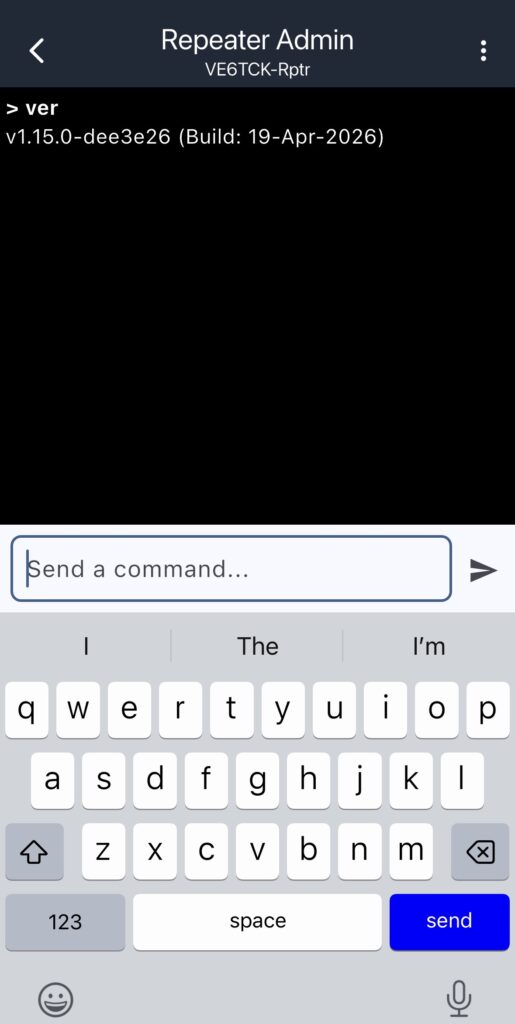
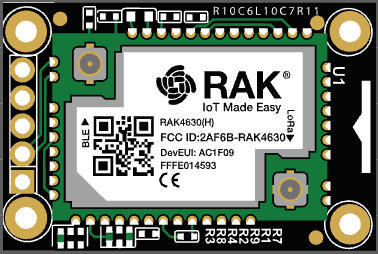
OK You have built a repeater with a RAK4631 and mounted it high up on a tower (because everyone knows, hight wins). Everything is looking good right? Then along comes a MeshCore firmware update and the last thing you want to do is climb back up that town just to upgrade it. Well don’t fear, OTA (Over-The-Air) upgrades are here to help.
OTA Updates allow you to upgrade your repeater, over the air. The process of doing the OTA upgrades can be different for different types of LoRa boards. This example is for the RAK4631 (but will work for most of the nRF type devices).
What is needed:
- An Android phone, Apple phone, or Apple MAC Laptop.
- The nRF Device Firmware Update app.
- The MeshCore firmware file.
The nRF Device Firmware App.
The nRF Device Firmware app is available in the Google Play or Apple App Stores. Install the application as you will need it later.
The MeshCore firmware file.
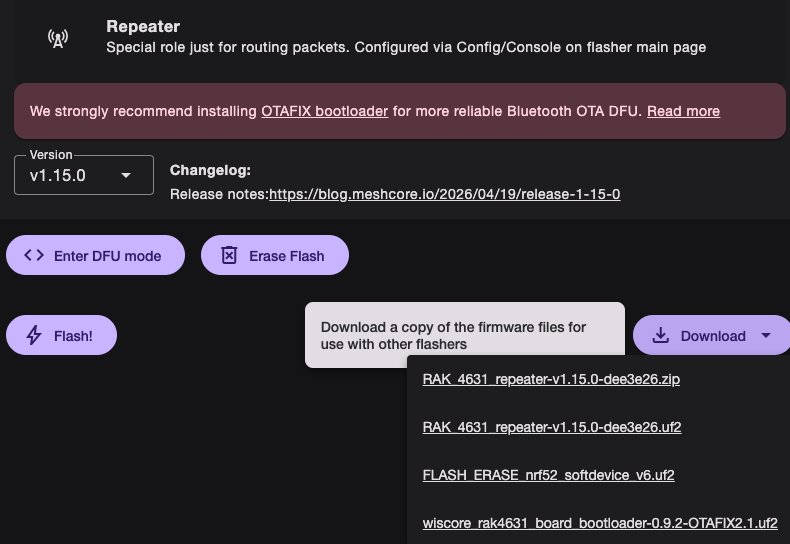
Go to either the MeshCore Web Flasher or the GitHub MeshCore releases repository. Find your device and select the firmware for either the Repeater or Room Server (in this case we are upgrading our repeater so we will select the Repeater Firmware). If you are using the Web Flasher, you will find the files under the download button. Click on the file that ends in zip. That is the one you want to download.
Enable OTA Mode
Use your companion app to log into the repeater you wish to upgrade. You must be logged in as the admin.
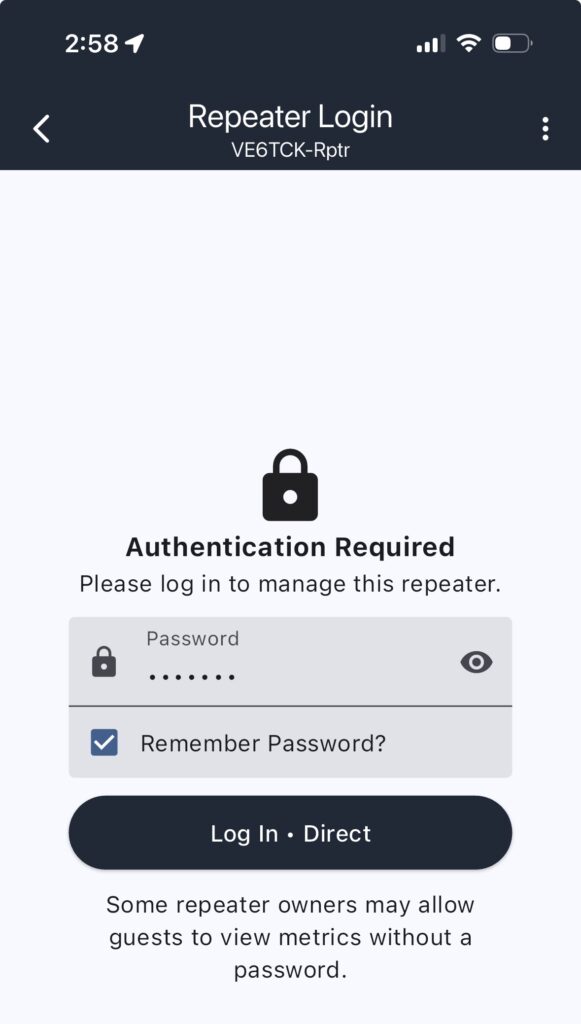
Once logged in as the admin click on the Command Line icon at the bottom of the screen. Once you are at the command line screen, type in the ver and start ota commands.
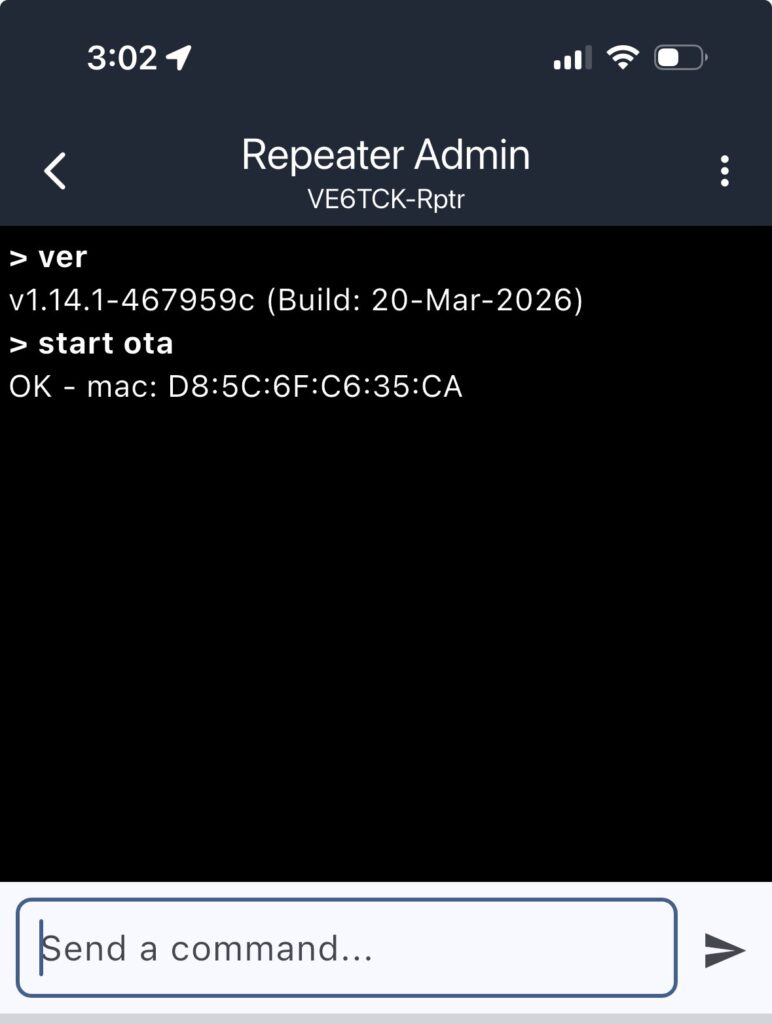
Once you have placed the repeater into OTS mode, it will no longer respond to commands. It waiting for the new firmware to be uploaded.
Updating the Firmware
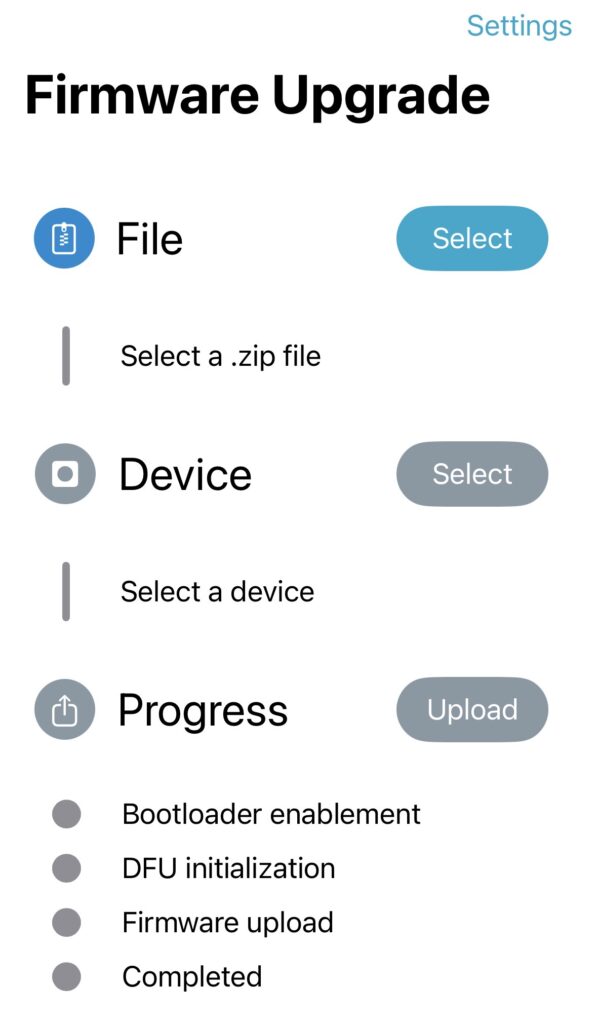
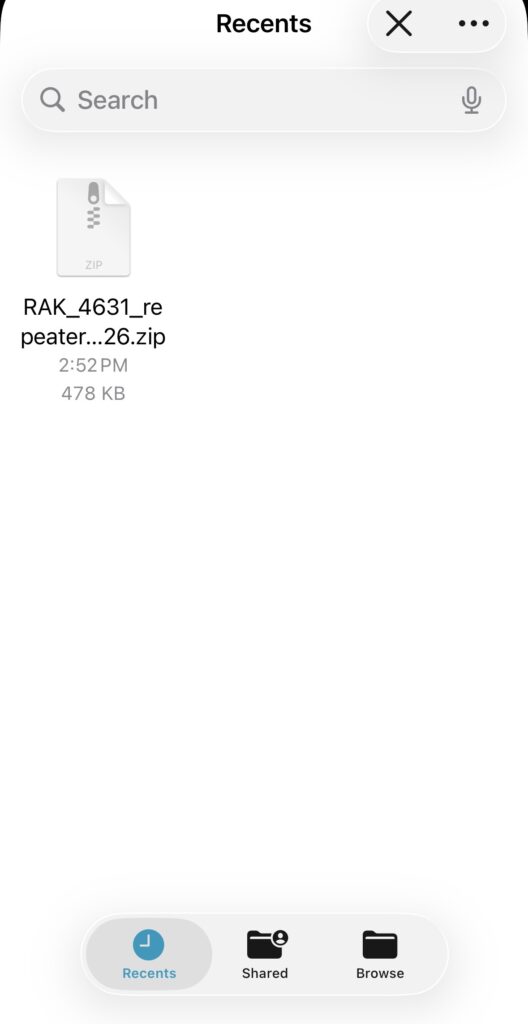
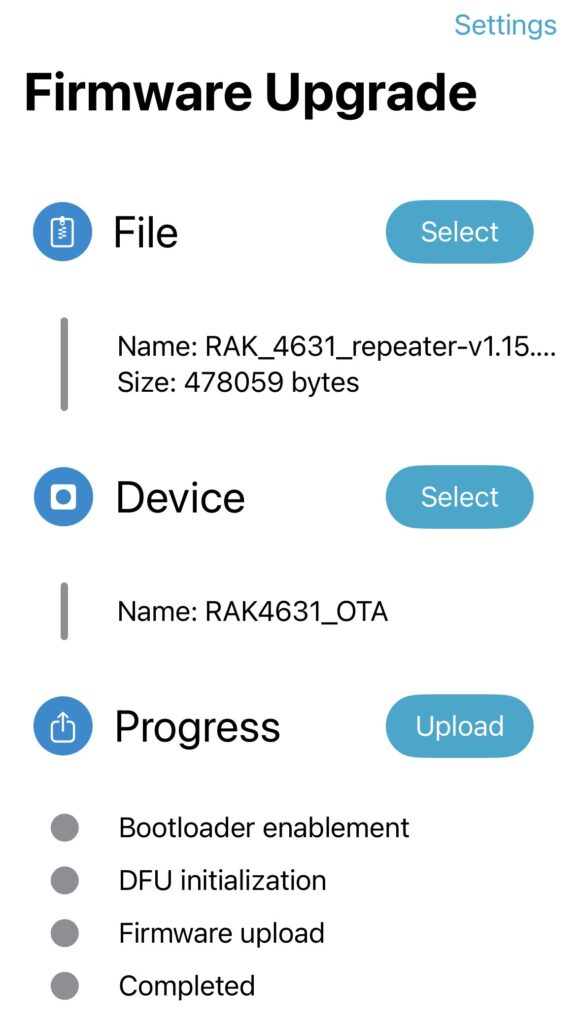
Flip over and run the nRF Device Firmware Application (DFU). You will see the firmware upgrade work flow with three buttons, File, Device, and Progress. Click on the File button and select the firmware you had downloaded before.
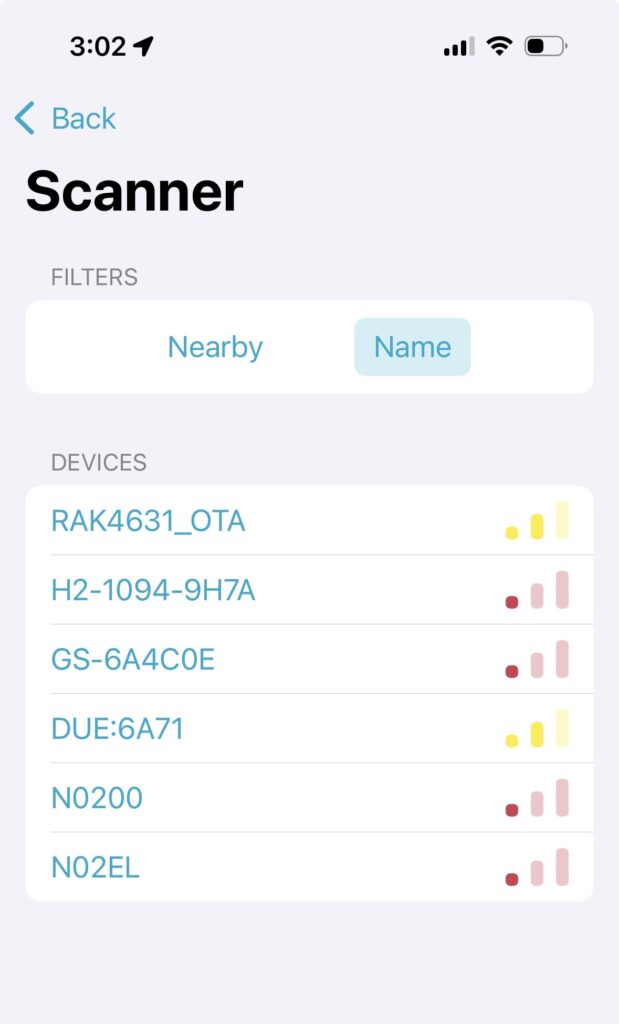
Next Click on the Device button and select your repeater. If you are running the safe DFU Bootloader then your device will show up as RAK4631_OTA. If you don’t have the DFU Bootloader installed, then you will have to determine what one is your repeater (if more than one) and make sure it is the one your select.
You are now ready to upgrade the repeater over the air. Click on the Progress button. You should see the progress as it enables the Bootloader, Initializes the DFU, and uploads the firmware.
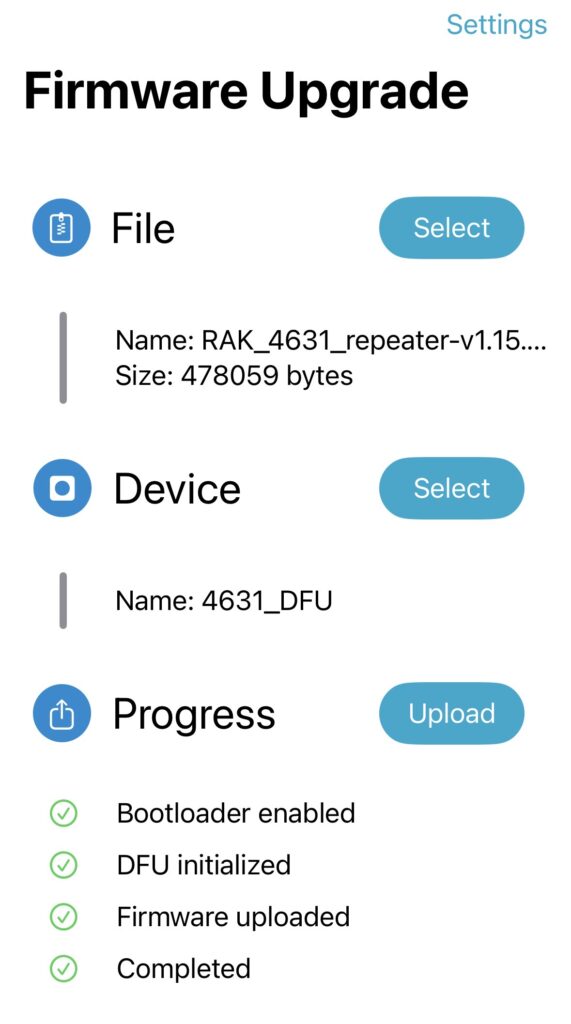
Contrats, you repeater should be upgraded. Go ahead and log back into it and check the version, it should not be running the new upgraded firmware.