
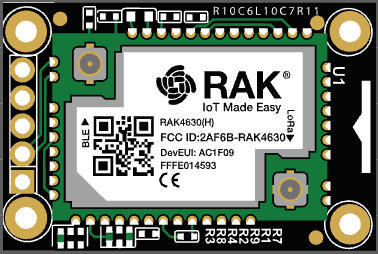
When it comes to updating the firmware in your RAK MeshCore there are two ways to do it. One is to plug the USB connection into your computer and the other is OTA (over-the-air) via bluetooth. If you have a repeater up in a tower, OTA might be the only option.
You may be very nervous about doing an OTA upgrade. If it fails or the upload is corrupt, how do I fix it without physical access. Well there is a solution BUT you have to have it in place before your OTA attempt. There is an upgraded bootloader for the RAK devices (actually all nRF52 devices) that may help. If it detects a bad upload or or it fails, the bootloader will put the RAK back into OTA upgrade mode so you can try again. I highly recommend it for any RAK devices, even if you don’t plan to do OTA upgrades yet.
The current version of the bootloader fix includes:
- Automatic fallback to OTA DFU mode if an update fails
- SignSignificantly faster OTA update speeds
- Additional quality-of-life improvements for certain devices, like the ability to enter OTA DFU mode by holding a button while resetting.
Check your Bootloader
This step is important for devices like the Seeed Studio XIAO nRF52840, which often ship with the SENSE bootloader variant.
To check:
- Plug the device into your computer with the USB cable.
- Enter UF2 DFU mode by double clicking on the reset button.
- A drive should appear in the file manager (finder on a MAC).
- Open the INFO_UF2.TXT file on the mounted drive
- This file contains details about your current bootloader.
Example: If the file shows: Board-ID: nRF52840-SeeedXiaoSense-v1 then you will need to install the SENSE variant
The contents of my bootloader looked like this:
UF2 Bootloader 0.4.3
Model: WisBlock RAK4631 Board
Board-ID: WisBlock-RAK4631-Board
Date: May 20 2023
Ver: 0.4.3
SoftDevice: S140 6.1.1
Download the Bootloader files
You can either download the bootloader file from the source at github or it is now available right from the MeshCore flasher.
To get it from the MeshCore Flasher got to https://flasher.meshcore.io
Select your device, and then Repeater. A download link for the OTAFIX bootloader will appear in the highlighted banner.
To get it from the github source go to https://github.com/oltaco/Adafruit_Bootloader_OTAFIX/releases
Either way you do it, make sure to select the correct device and download the update-XXXX.uf2 file. For example, I have a RAK with a 4631 board in it so the filename for me is:
update-wiscore_rak4631_board_bootloader-0.9.2-OTAFIX2.2-BP1.3_nosd.uf2
Installing the Bootloader.
You will need a USB cable and be able to connect your device to a computer. Plug the board into your computer with the USB cable.
Double click the reset button on the WizBlock board to force it into DFU mode. In your file manager (or finder on a MAC) you should see a new drive appear (mine would be called RAK4631).
Drag the file you downloaded (the .uf2 one) onto the RAK4631 drive. The device will automatically detect it and will disconnect, upgrade the bootloader, and then reboot automatically.
If the drive did not appear back on your computer after the reset, then unplug and replug the device into your computer. You can now check the INFO_UF2.TXT file and it should have changed to show you the bootloader fix is installed.
My bootloader looked like this after the upgrade:
UF2 Bootloader 0.9.2-OTAFIX2.1-BP1.2 lib/nrfx (v2.0.0) lib/tinyusb (0.12.0-145-g9775e7691) lib/uf2 (remotes/origin/configupdate-9-gadbb8c7)
Model: WisBlock RAK4631 Board
Board-ID: WisBlock-RAK4631-Board
Date: Dec 22 2025
SoftDevice: S140 6.1.1
You are done. You can now upgrade the firmware OTA with a little more confidence now.
I had a 4631 on Meshtastic and flashed it as a Meshcore repeater and changed the bootloader as recommended on the Meshcore flasher page. Then I discovered zero Meshcore activity in my area. Tried to flash back to Meshtastic and keep getting “the wrong diskette is in the drive” error. After two days of googling solutions – I give up. Any suggestions to reinstalling the bootloader that was installed before OTAFIX 2.2 so I can flash Meshtastic?
Hi Randy,
The bootloader that is installed shouldn’t make a difference if you are installing MeshCore or Meshtastic. When you move back and forth, it’s important to remember to erase the flash. I am not as familiar with the Meshtastic flasher but on MeshCore there is a separate button (in the online flasher) to erase the flash. Also, erasing the flash only erases the flash read where MeshCore or Meshtastic sit, it does not erase the Bootloader.
I hope this helps and Happy Meshing.
— Kirk